

Send a project's test-run results to a Slack channel using a Slack Incoming Webhook.
When a run completes, NeetoPlaydash posts a formatted message to the channel the webhook is bound to.
This is a lightweight alternative to the OAuth-based Slack integration: there is no channel picker and no customizable message template, you paste a webhook URL and (optionally) set delivery conditions. The channel is decided on the Slack side when you create the webhook.
Connecting a project with your Slack App
Choose the project for which you want to integrate your Slack channel
Click the Settings tab.
-
Click on the Slack (Incoming Webhook) card.
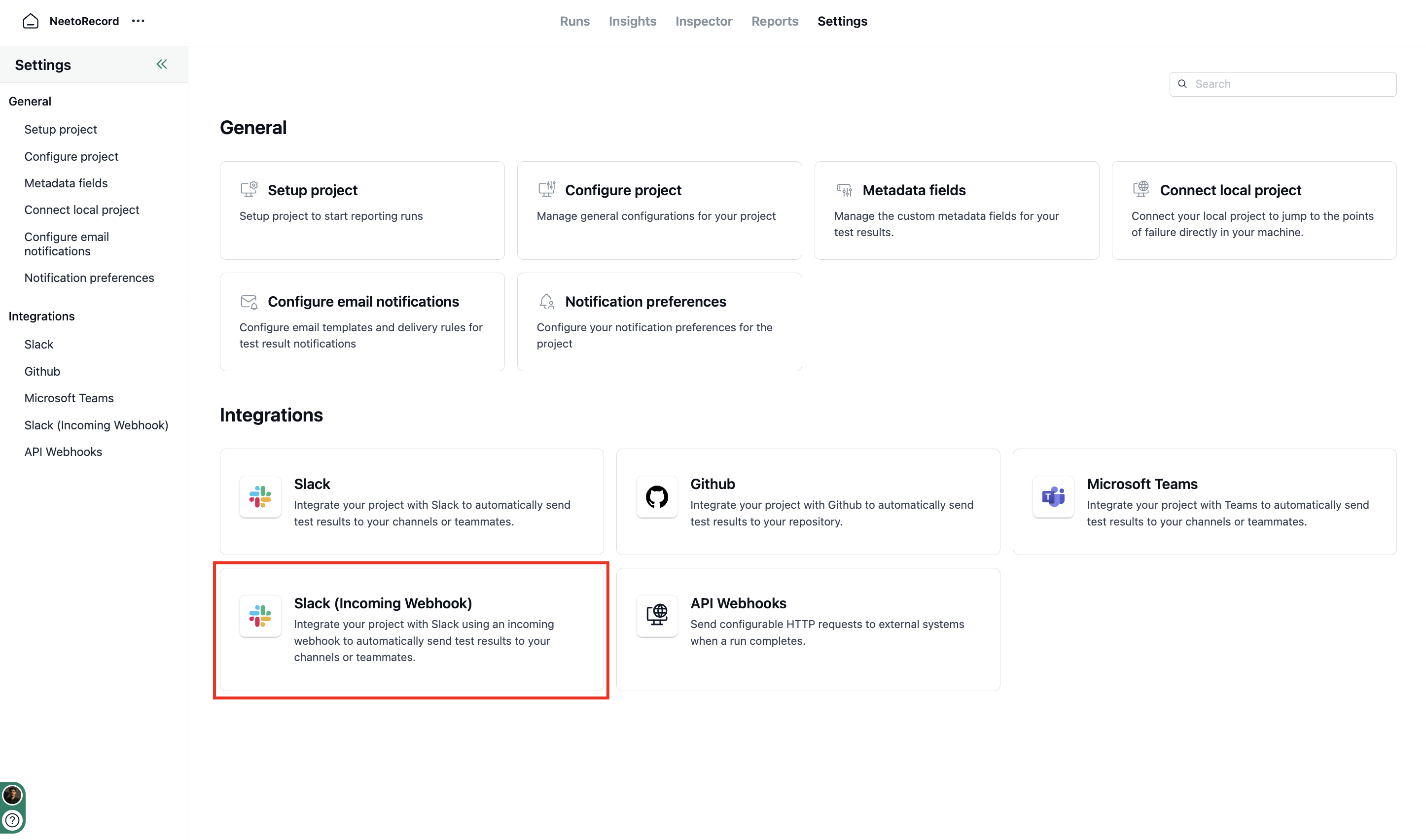
Settings | Slack (Incoming Webhook) Integration Card -
In the Slack (Incoming Webhook) screen, click on the Connect Slack (Incoming Webhook) button.
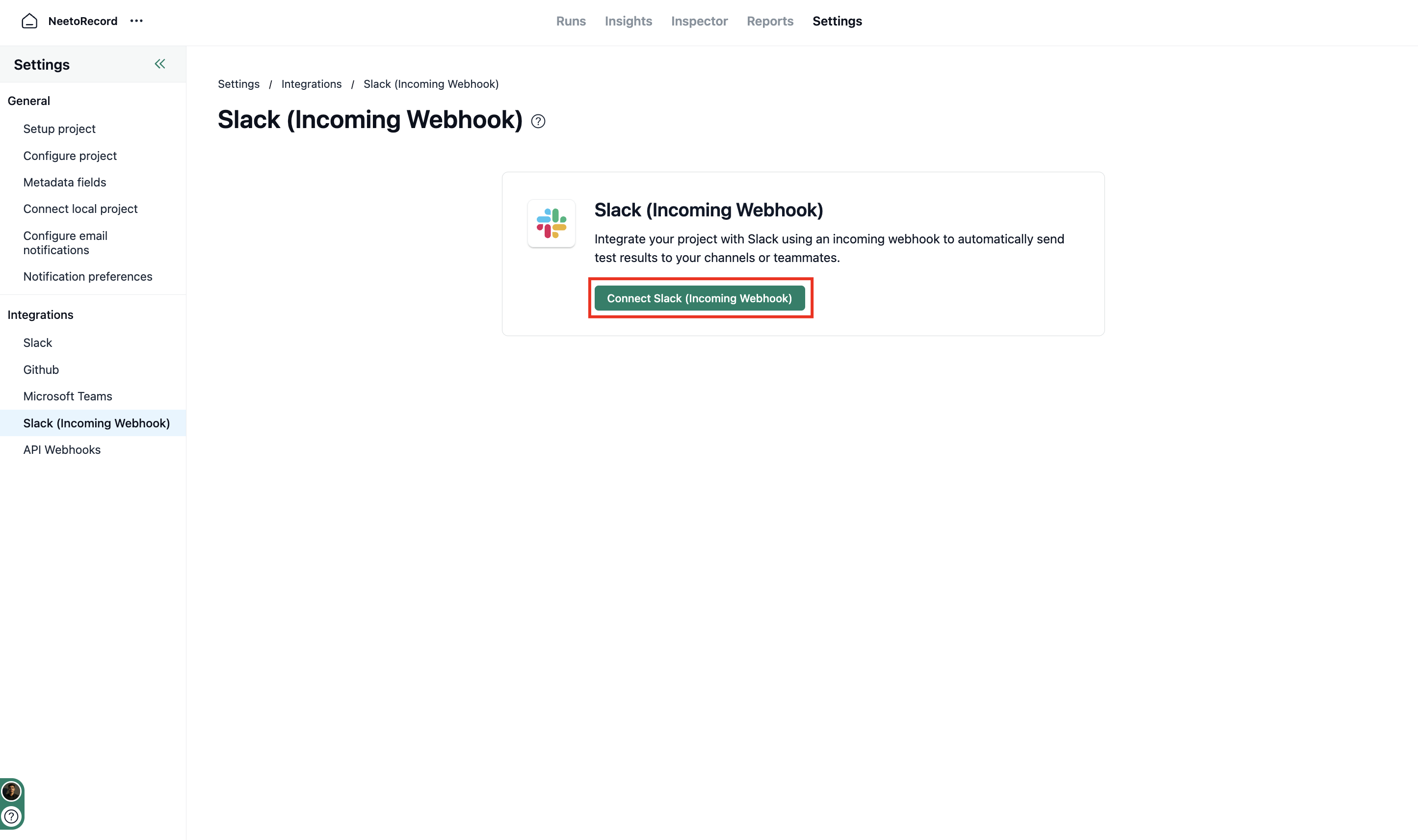
Slack (Incoming Webhook) Integration -
You will be greeted with a form to enter Slack Webhook URL. You need to get the Slack Incoming Webhook URL from Slack Apps API.
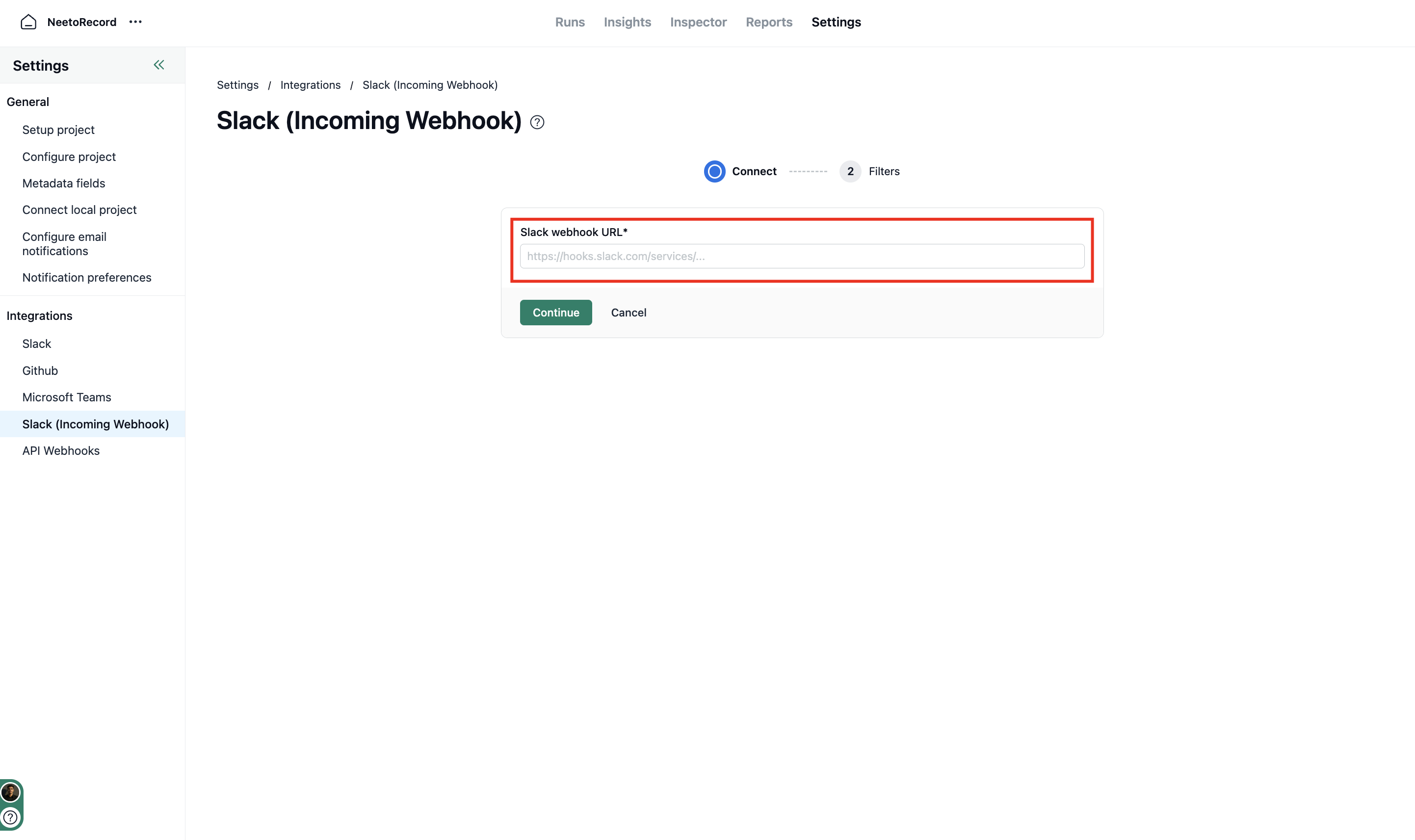
Slack Incoming Webhook URL
Getting the Webhook URL for a channel from Slack Apps API
Go to https://api.slack.com/apps and sign in with the Slack Workspace you want to send updates to.
-
Click Create New App → From scratch.
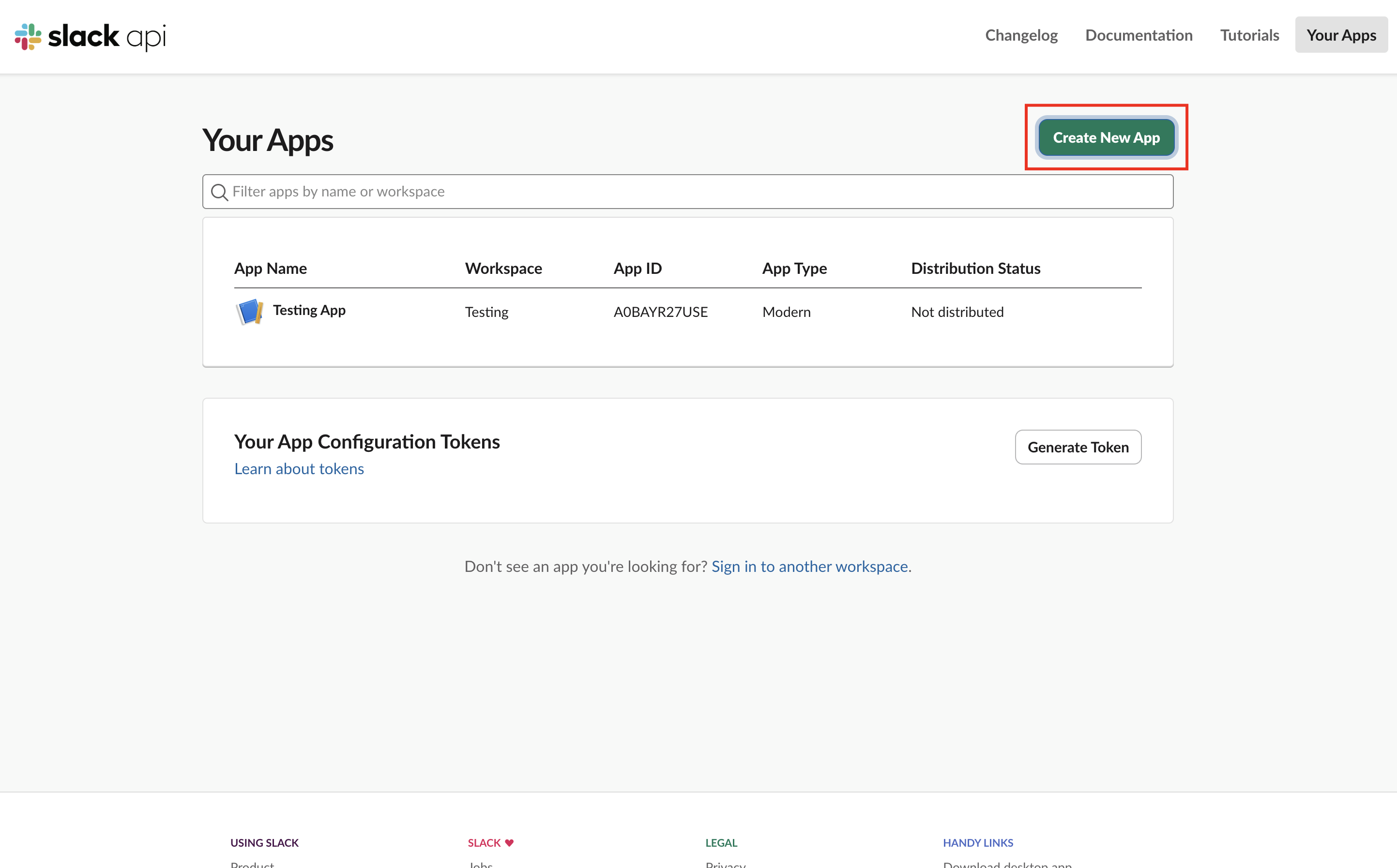
Slack API | Create New App 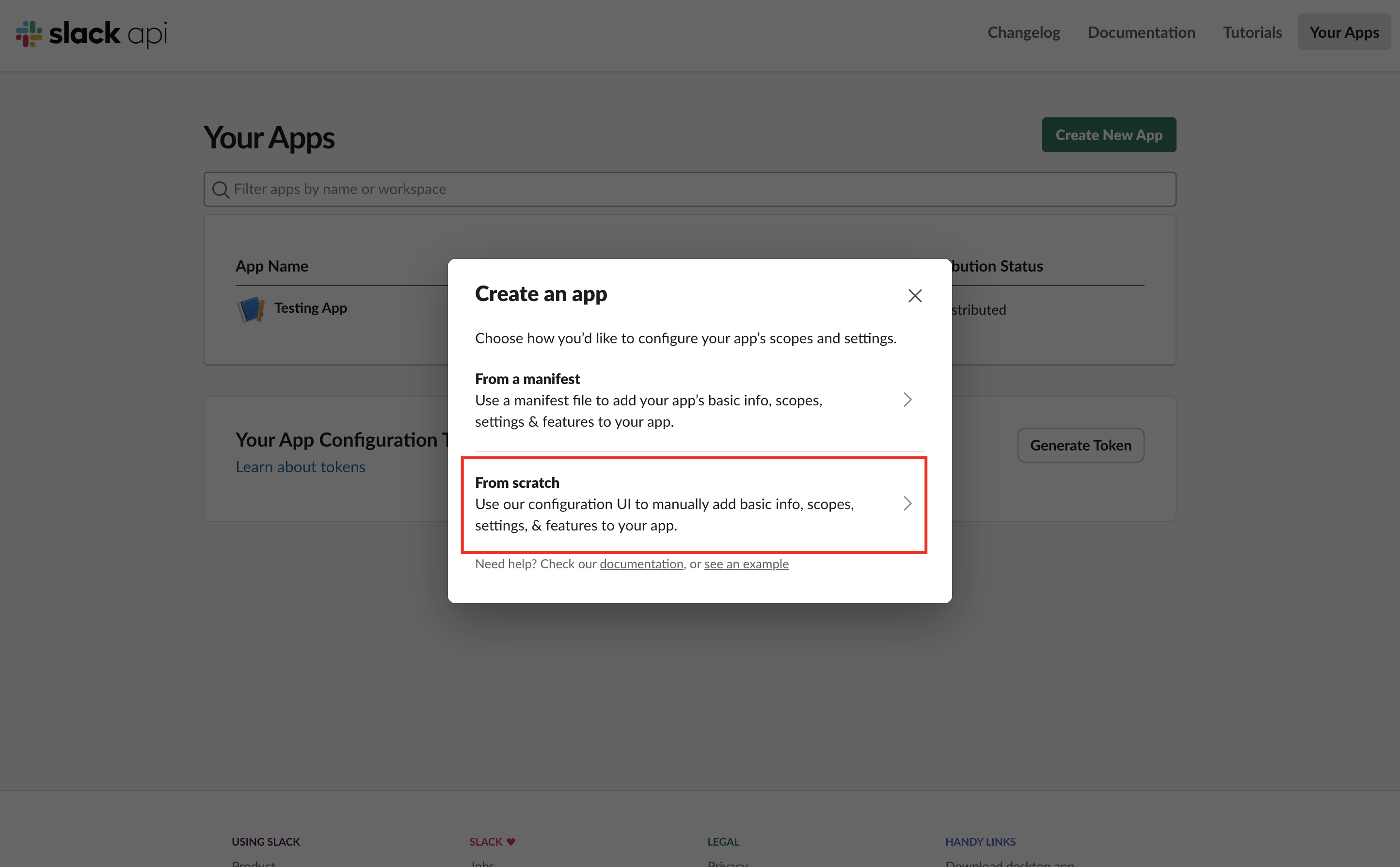
Slack API | Create an App From Scratch -
Enter an App Name (e.g.
NeetoPlaydash), pick the workspace to install it in, and click Create App.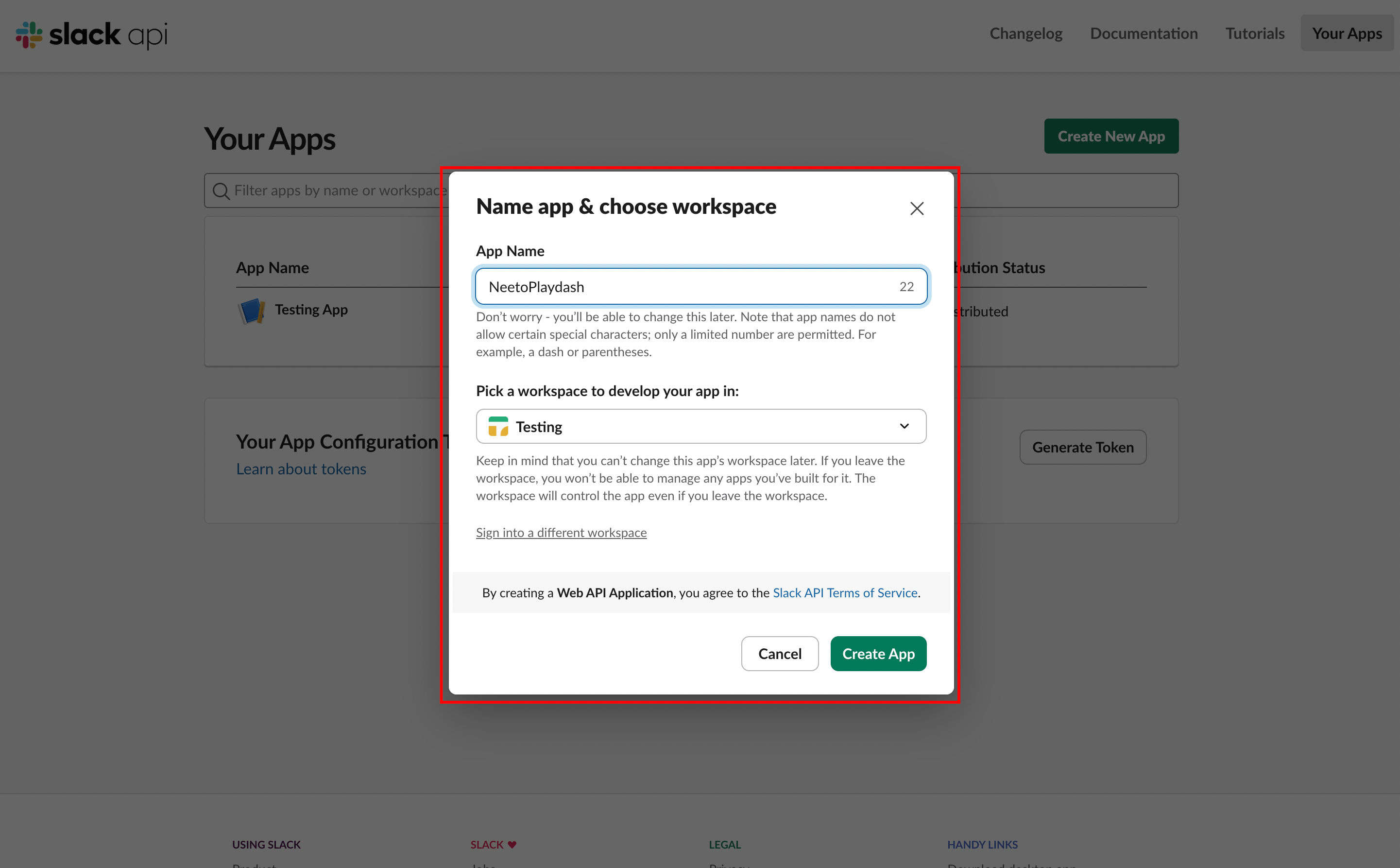
Slack API | App Configuration -
In the left sidebar under Features, open Incoming Webhooks.
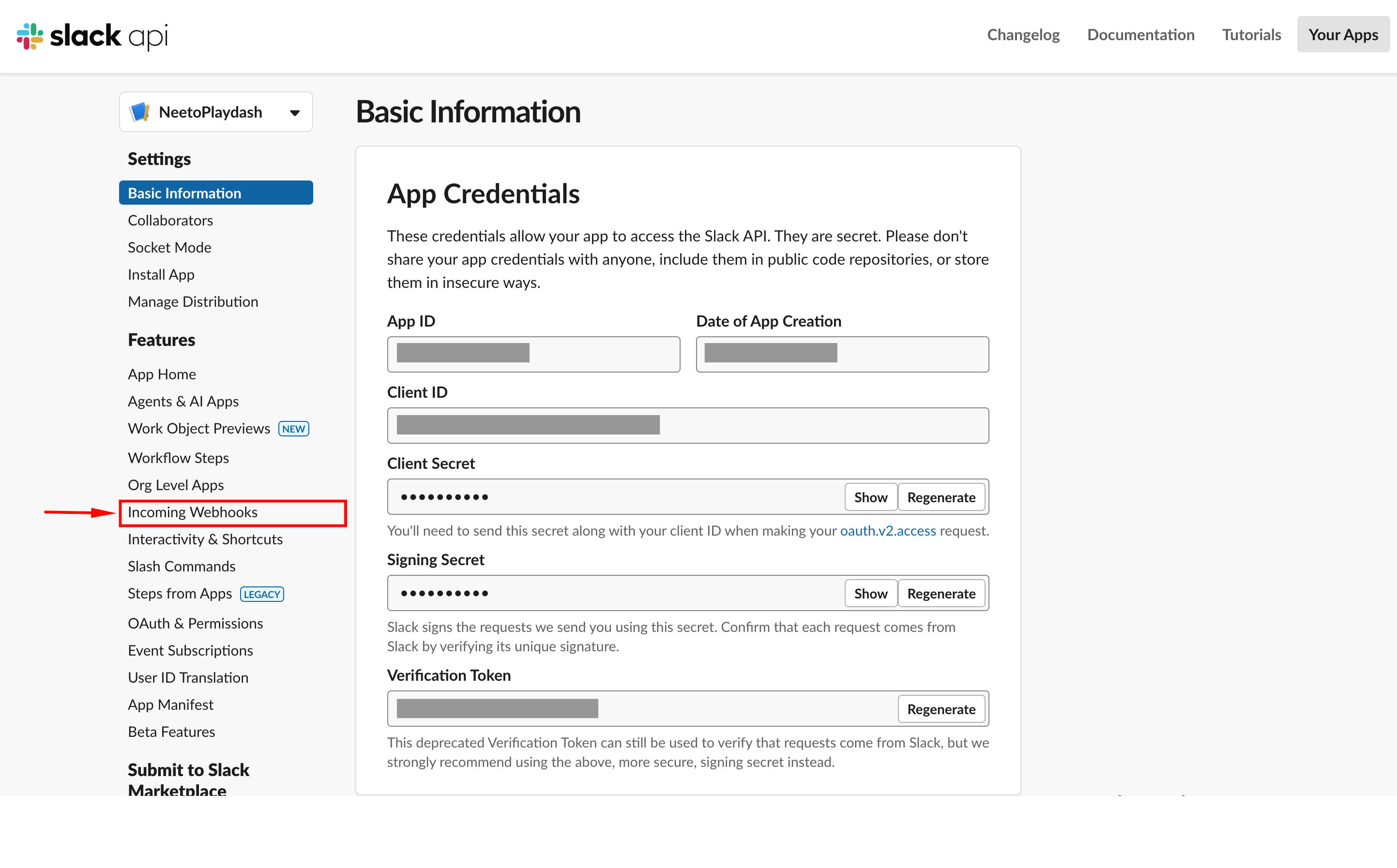
Slack API | Incoming Webhooks -
Toggle Activate Incoming Webhooks to On.
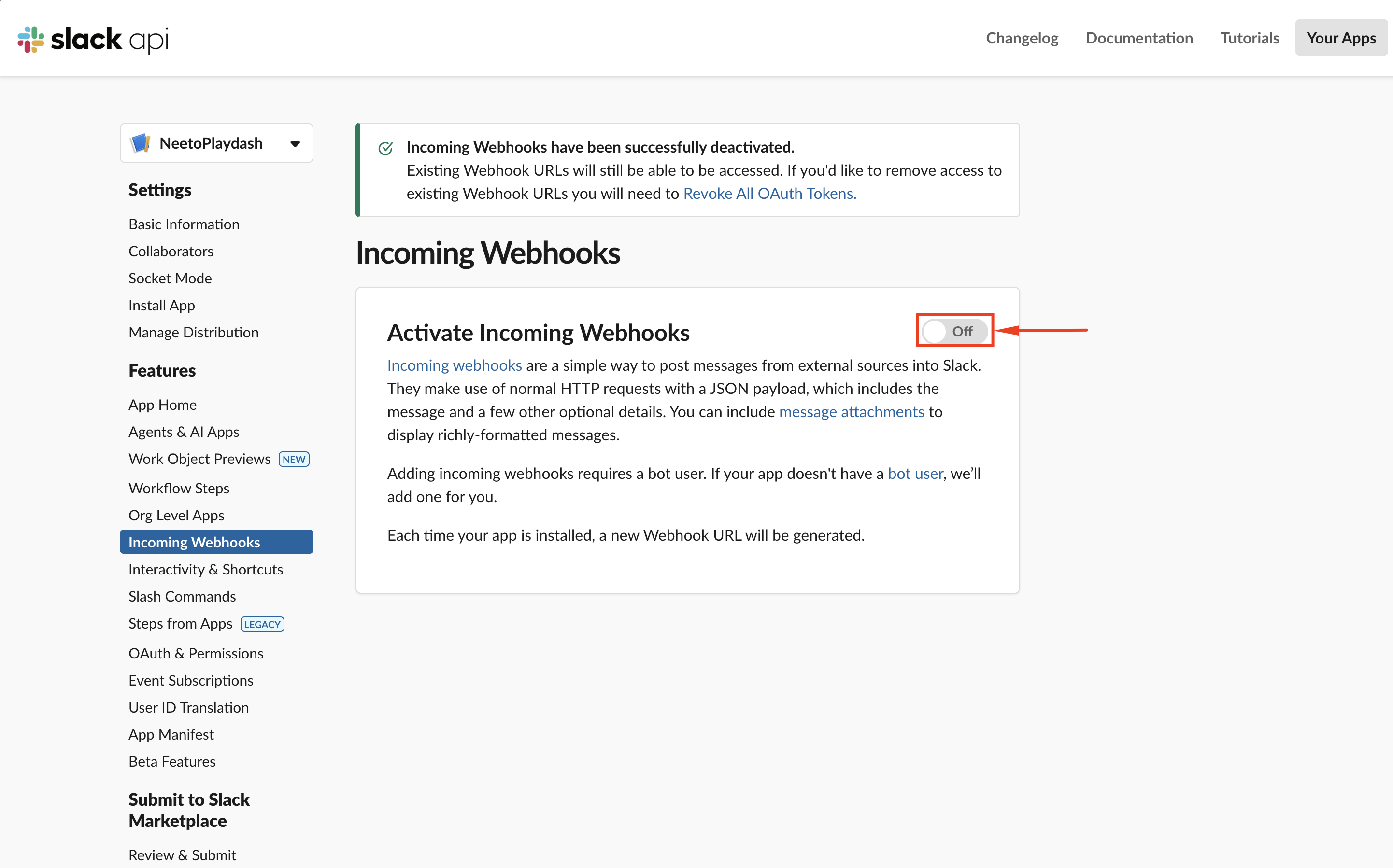
Slack API | Activate Incoming Webhooks -
Scroll down and click Add New Webhook to Workspace.
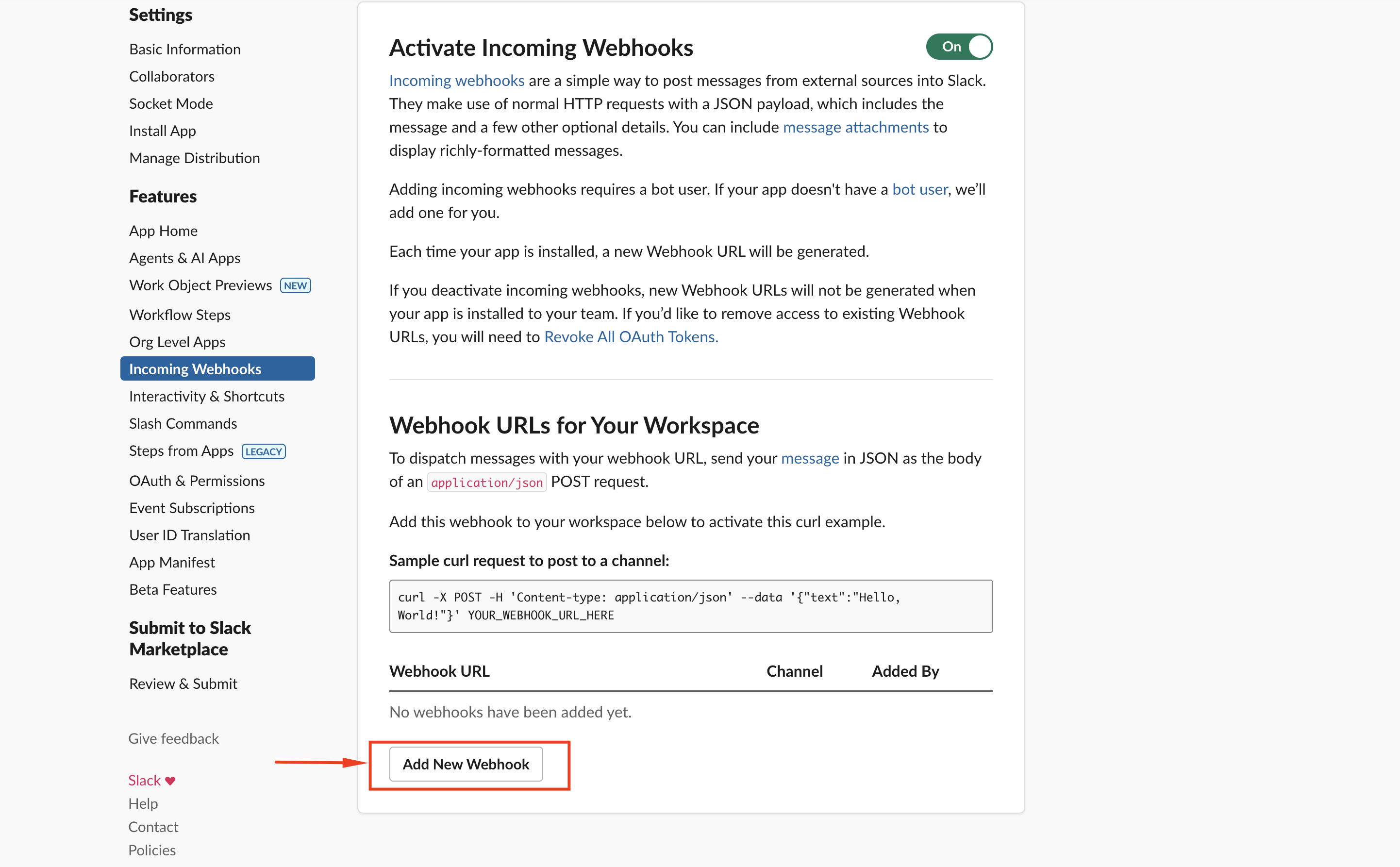
Slack API | Add New Webhook -
Choose the channel where results should be posted, then click Allow.
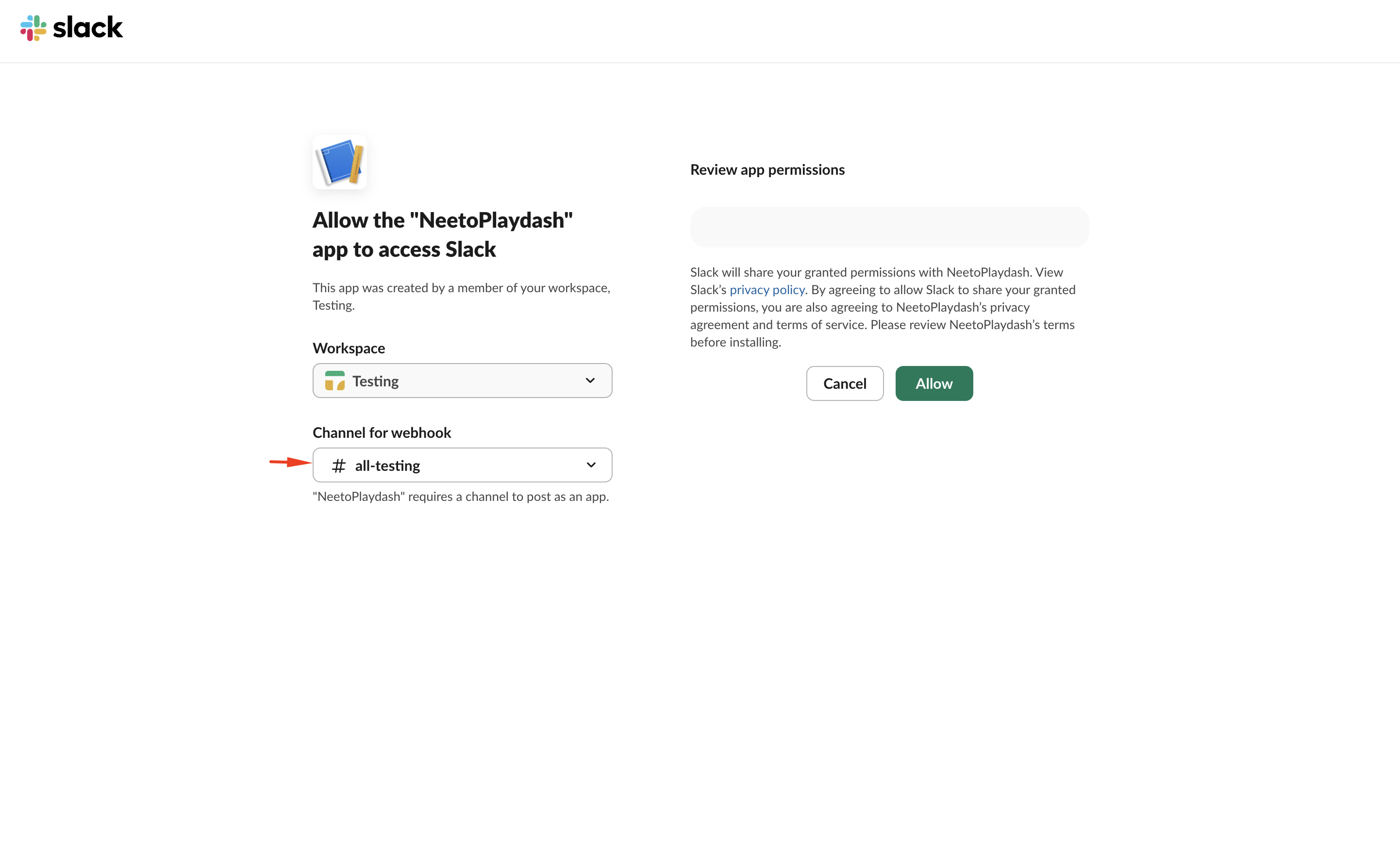
Slack API | Select Channel -
Back on the Incoming Webhooks page, copy the generated Webhook URL (starts with
https://hooks.slack.com/services/…). Keep this URL handy, we need to add this to NeetoPlaydash Slack (Incoming Webhook) Integration.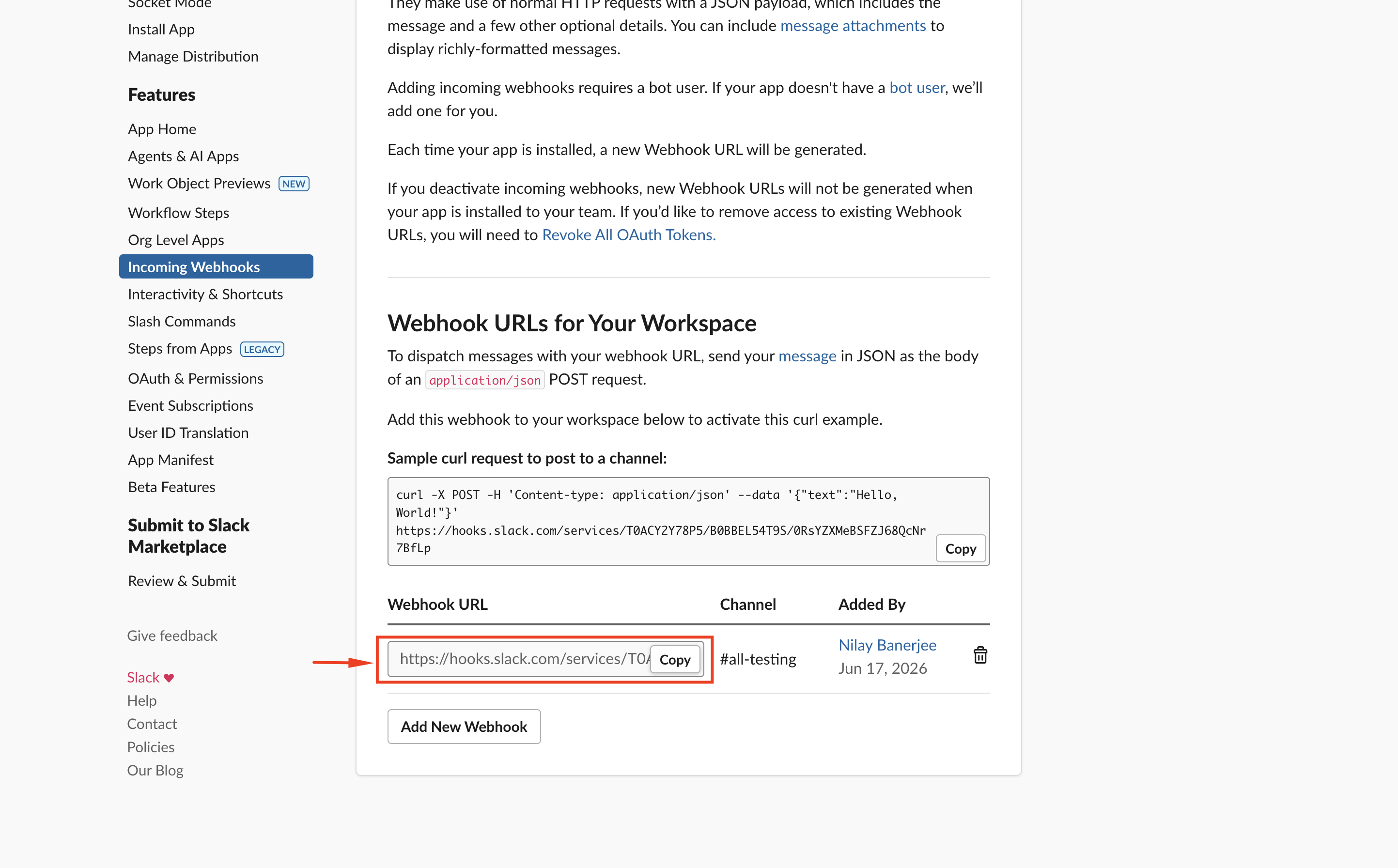
Slack API | Copy Webhook URL
Adding the configured Webhook URL in NeetoPlaydash
Once the Webhook URL has been generated, it needs to be added into NeetoPlaydash.
In the NeetoPlaydash Slack (Incoming Webhook) integration page, paste the copied Webhook URL in the Slack Webhook URL field.
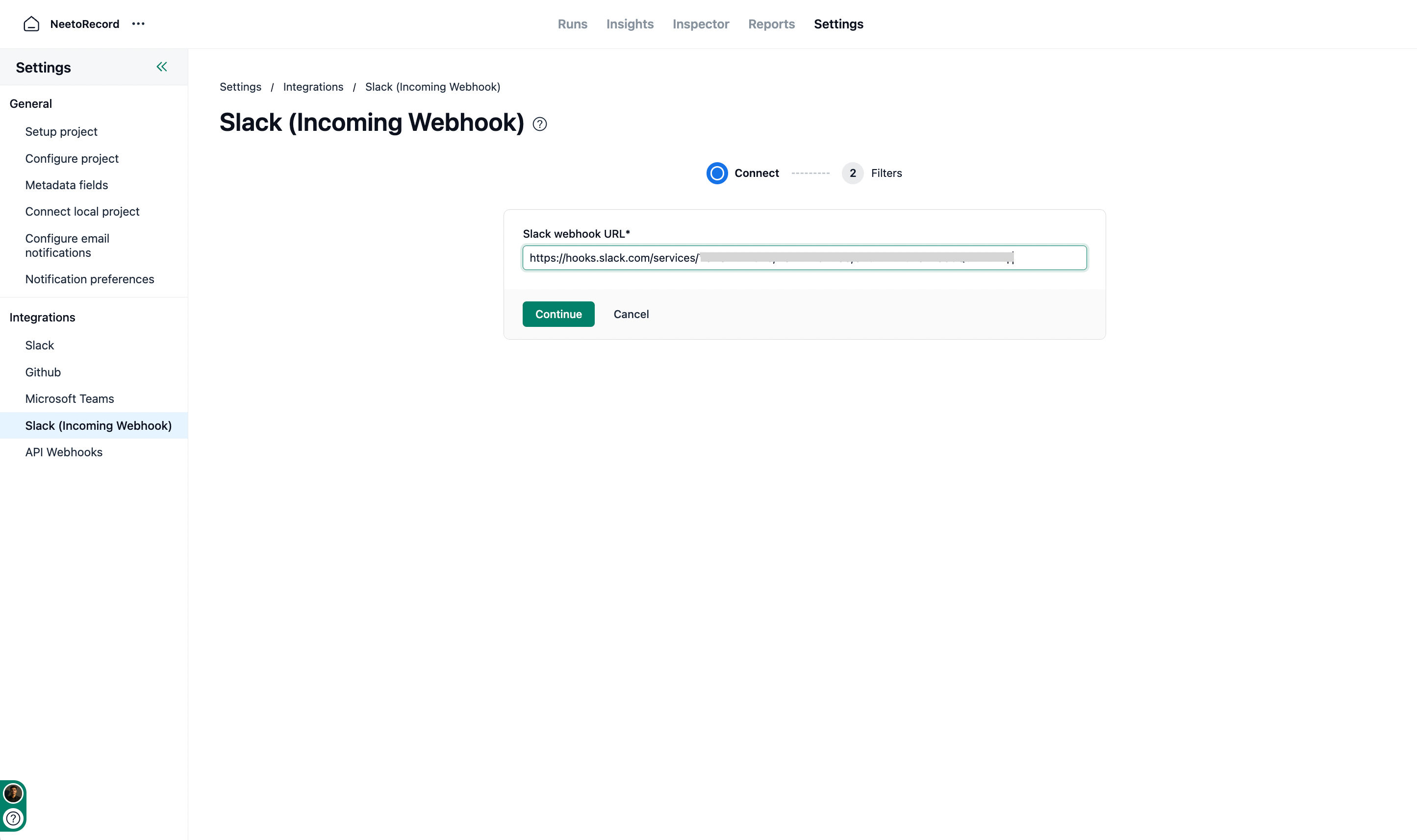
-
Click Continue. You'll advance to the Filters step. Update the filters based on your preference and click on Save Changes.
The Filters step controls when a Slack message is sent. You can find more details about the notifications filters from this link.
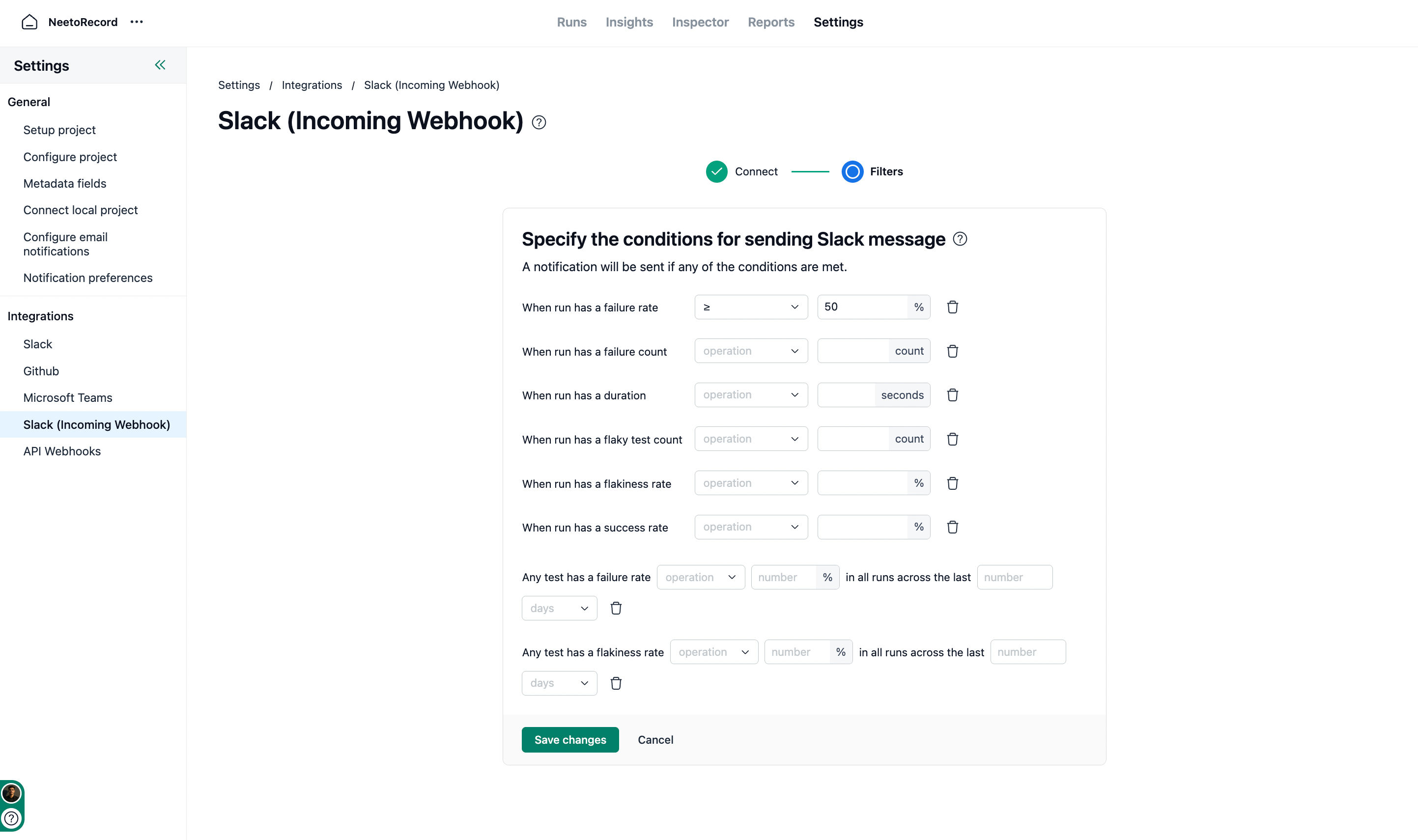
NeetoPlaydash | Filters
That's it! Now, whenever a run is completed based on your filter preference you will receive a notification on your Slack channel.
Slack incoming webhooks
The incoming webhooks are a secure way to post messages to channels in your Slack workspace without installing any 3rd-party Slack apps in your Slack workspace. This is done by creating an internal app within your workspace. This app is under the ownership of the workspace under which it was created.
Incoming webhooks serve as a way to only post messages and do not allow permission to read Slack messages in the channel. So your messages stay private.
To know more about incoming webhooks, you can visit the Slack dev docs.